Help

Build your audience

Add contacts

You will have at least one subscribed contact.

  1. Import a CSV

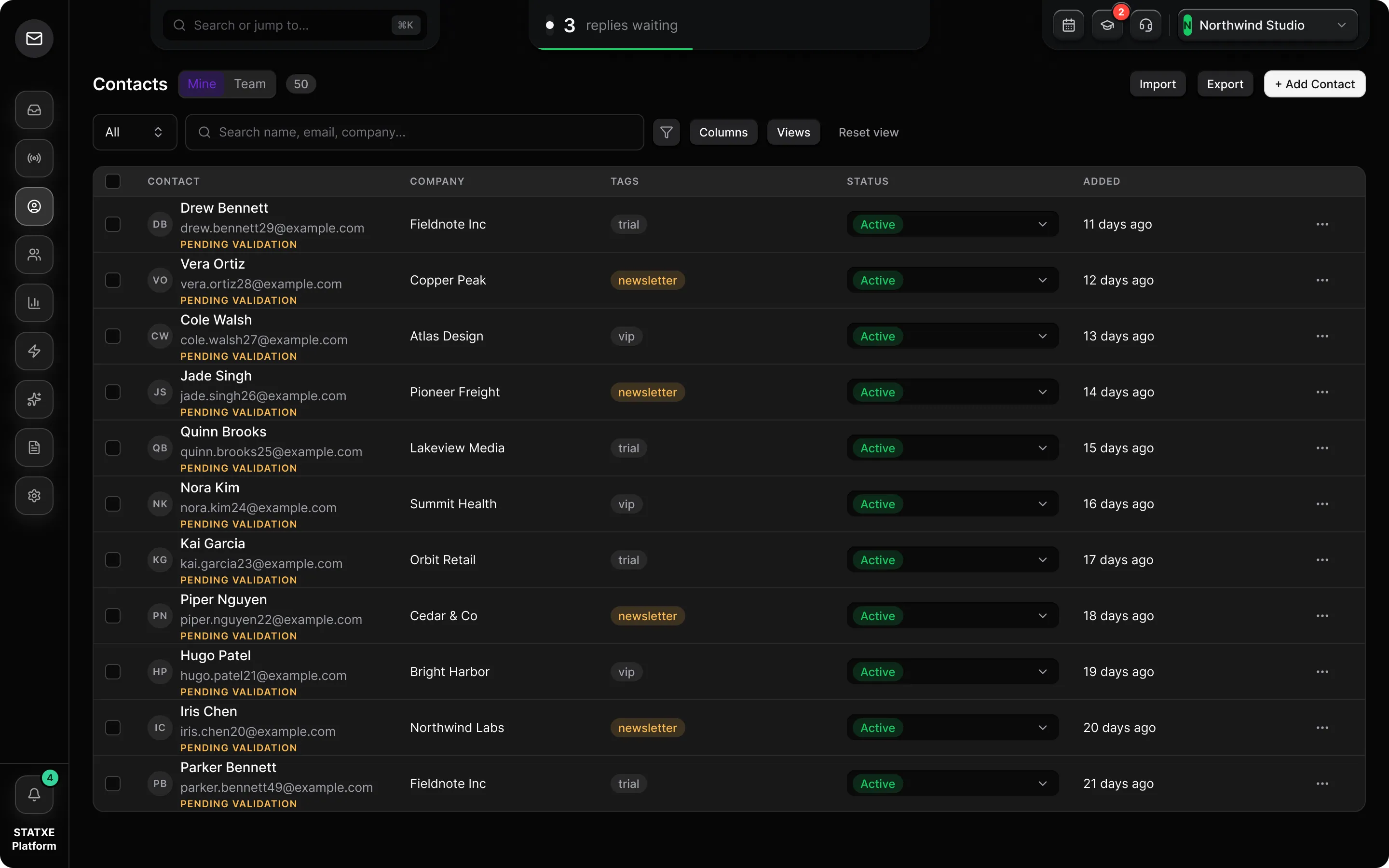
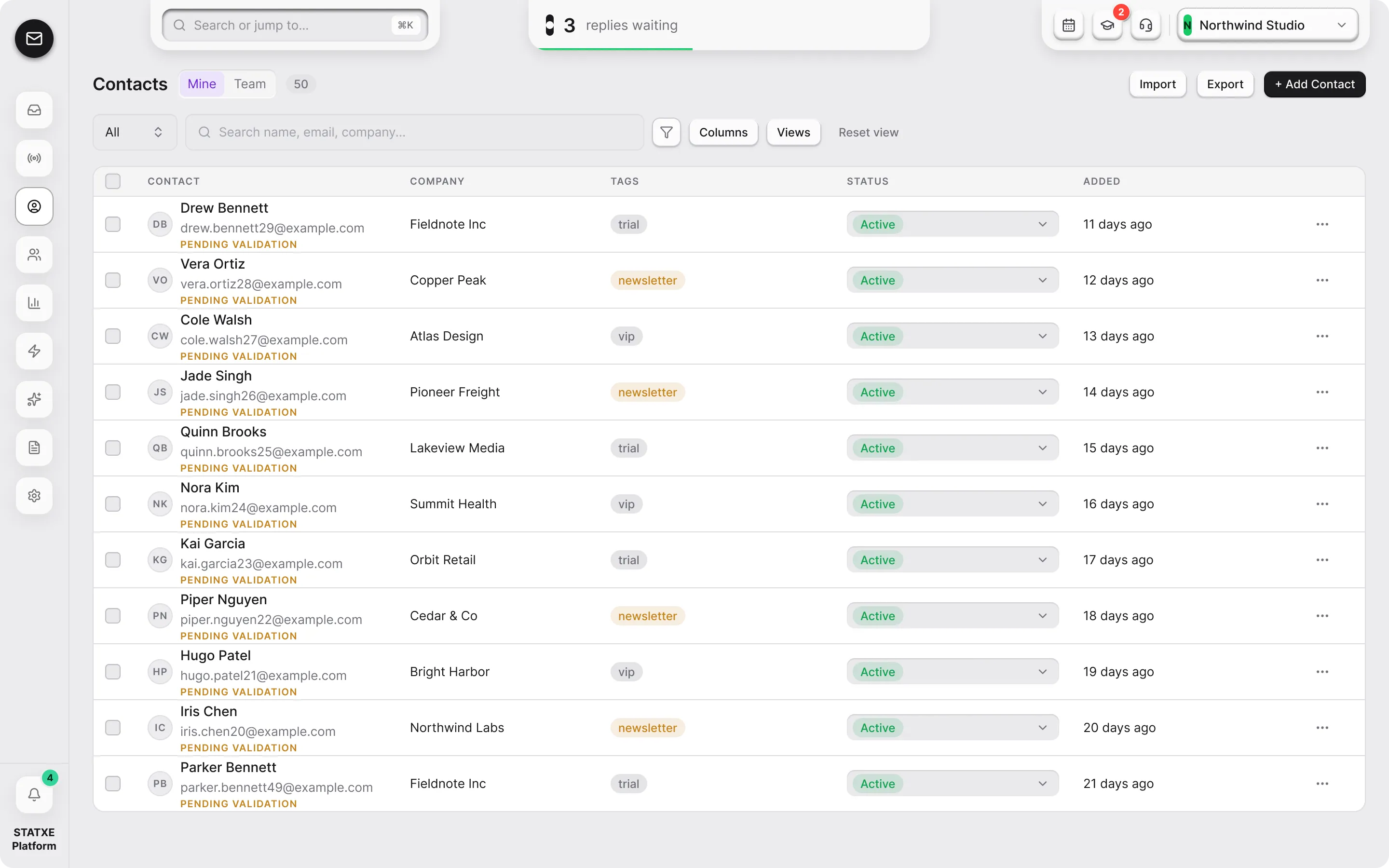
    Go to Contacts and use Import. Drop a .csv you have permission to email. Auto-map looks for name, company, email, phone, address, and revenue.

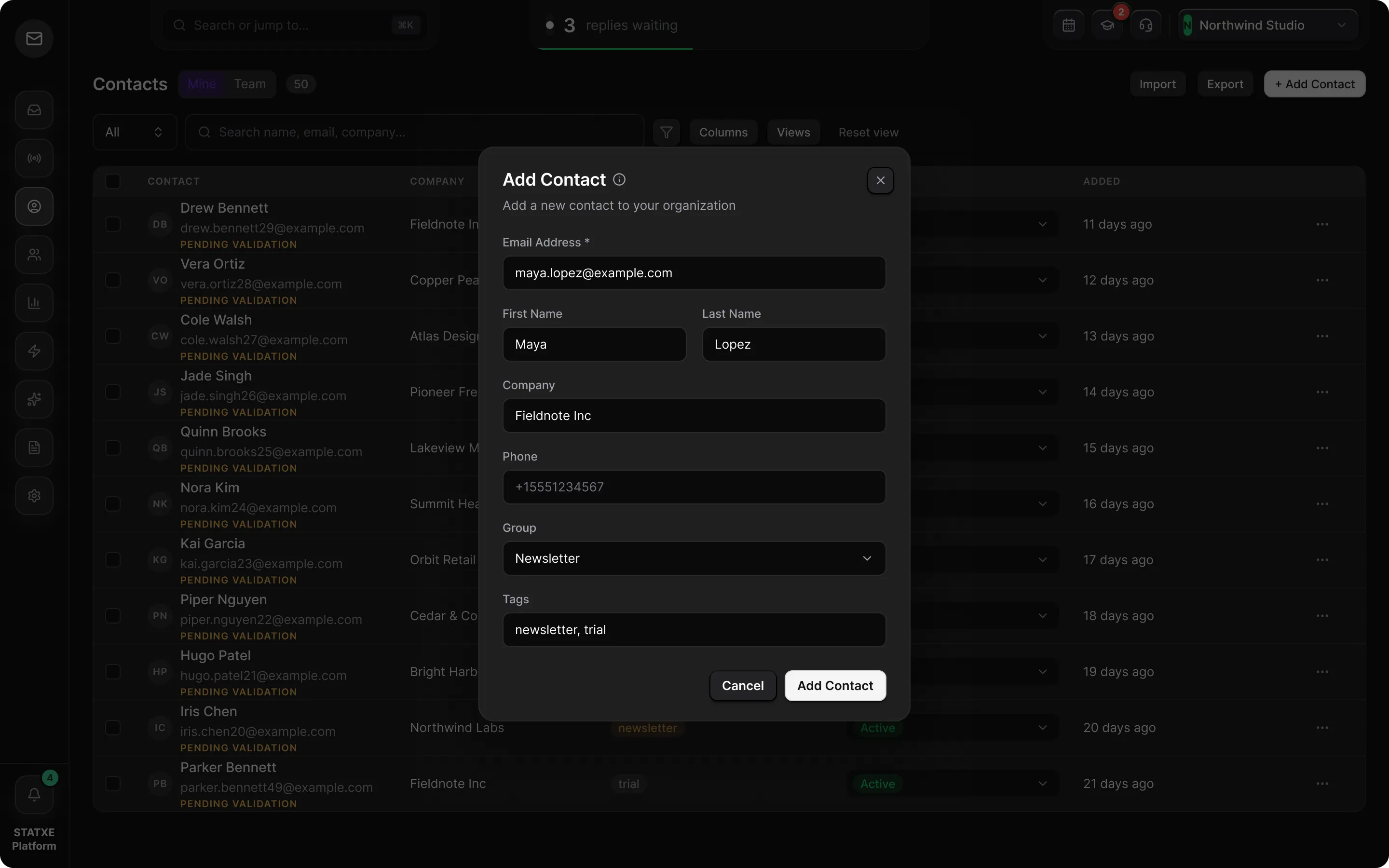
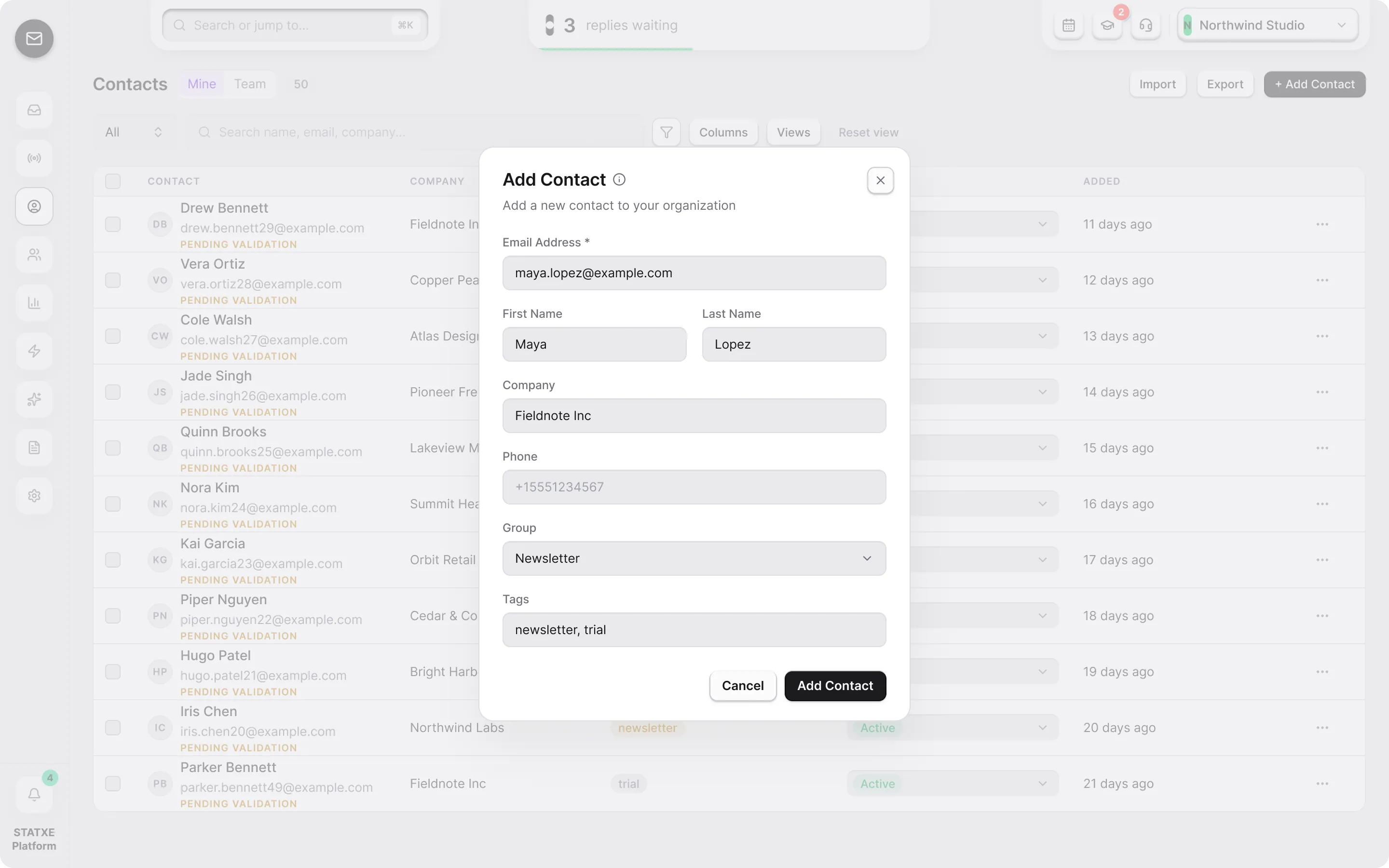
    To add one person instead, use Add Contact and save an address you control.

  2. Map the columns

    Confirm Email is mapped — import will not run without it. Use Auto-map as a start, then set extras to Ignore or Custom merge fields. Click Import.

  3. Review rejected rows

    Quality checks send bad rows to Failed imports. Typical reasons: invalid syntax, disposable domains, role accounts (info@, admin@), suspected typos, and duplicates. Fix the address inline, accept a suggestion, ignore, or delete. Do not force a purchased list through.

  4. Add the imported people to a group

    Back on Contacts, select the new rows. The bulk bar opens. Use Add to group to put them on a list you can target from a campaign. Click a name in the table to edit first and last name if the CSV split them wrong.

Import, map, review rejects, then group

Contacts

6
ImportExportAdd Contact

Import contacts

Choose CSV file

Click or drop a CSV anywhere in this box

Auto-map looks for name, company, email, phone, address, and revenue. Extra columns can be ignored or kept as custom merge fields.

Walkthrough playing.

Contacts — import a CSV or add one person.

Contacts

ContactCompanyTagsStatusAdded
AAda Lovelaceada@updates.statxe.comSTATXEActive ▾2 days ago
NNia Colenia@northwind.devNorthwindformcompleted-formActive ▾4 days ago
JJordan Halejordan@brightline.coPENDING VALIDATIONActive ▾7 days ago
SSam Ortizsam@harbor.studioSHAREDHarborActive ▾7 days ago
RRiley Chenriley@statxe.comSTATXEActive ▾7 days ago
MMorgan Ellismorgan@lumen.mediaPENDING VALIDATIONActive ▾7 days ago
‹ 1 ›Showing 1–6 of 6
6 selected on this pageMake premium2 not validatedRemove premiumExportAdd to groupShareValidateBlastDelete