Help

Create

Draft with AI

You will have a draft you reviewed before it left.

  1. Pick where you are drafting

    Use the assistant for campaign copy, subjects, and outlines. Use Ask AI on an inbox thread for a reply. Both spend AI credits. Nothing they write is sent on its own.

  2. Ask for a specific draft

    Name the audience, the outcome, and the tone. For a campaign: subject, offer, and who it is for (Launch list). For a reply: what the contact asked and how you want to answer.

  3. Put the draft where you will edit it

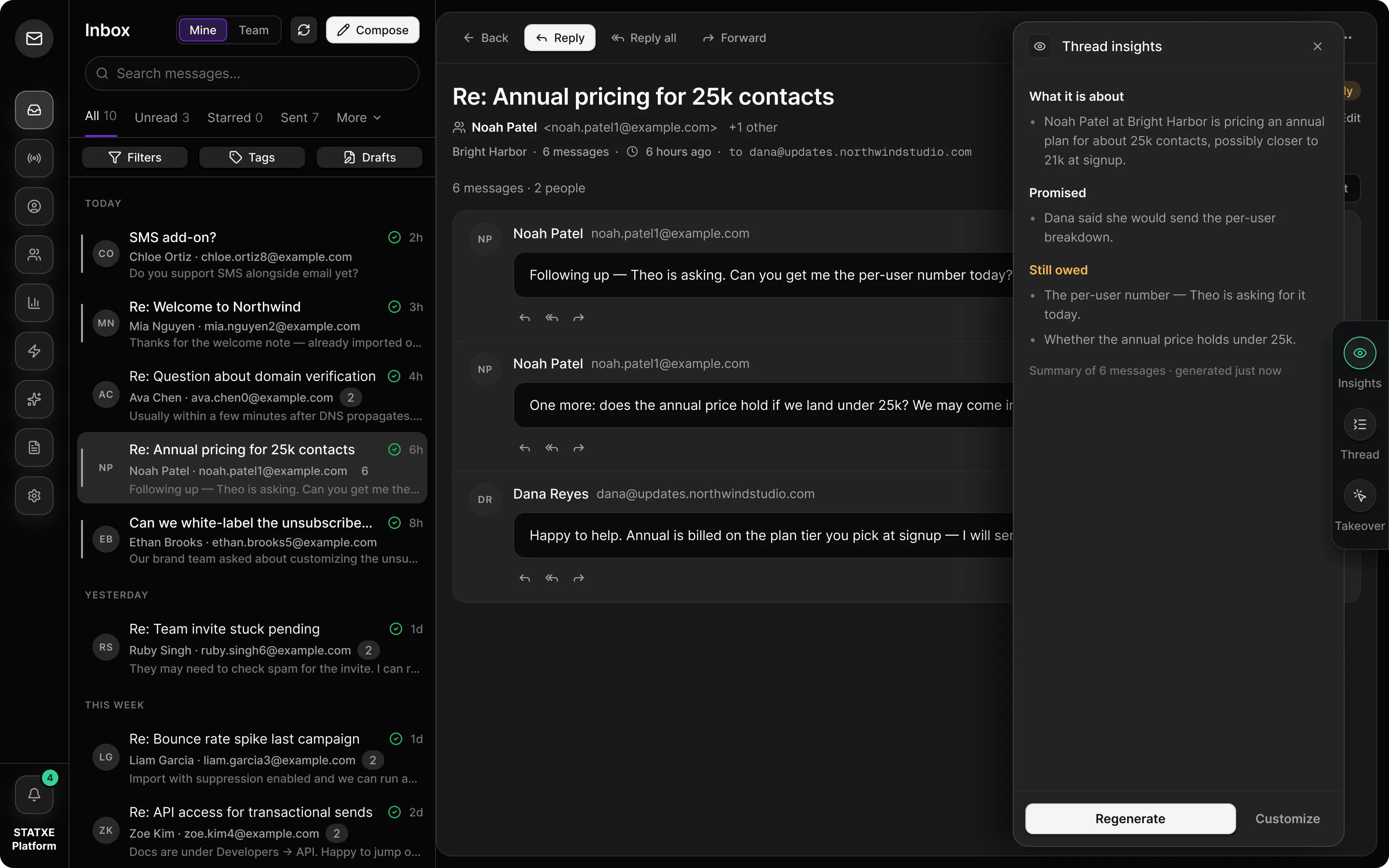
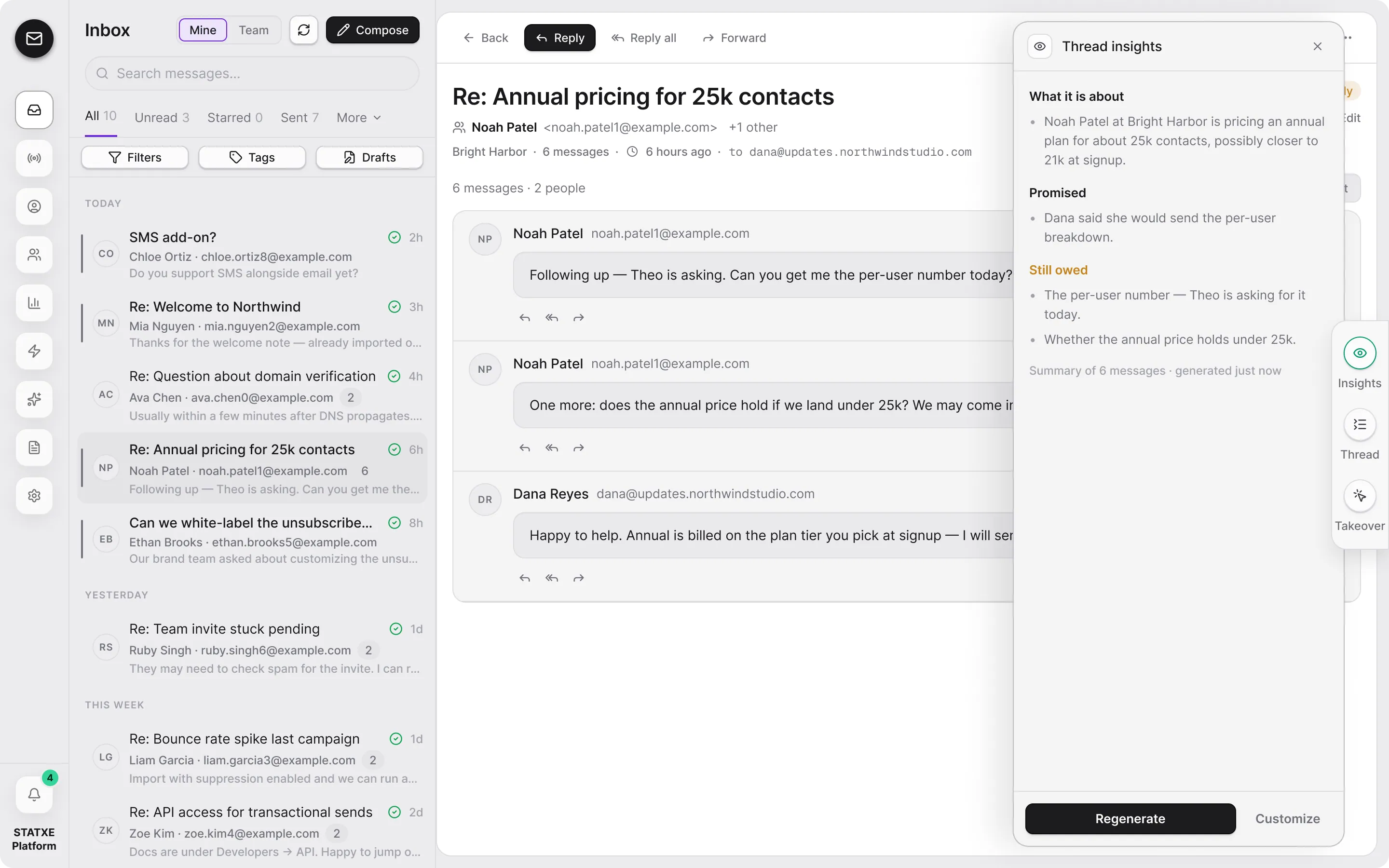
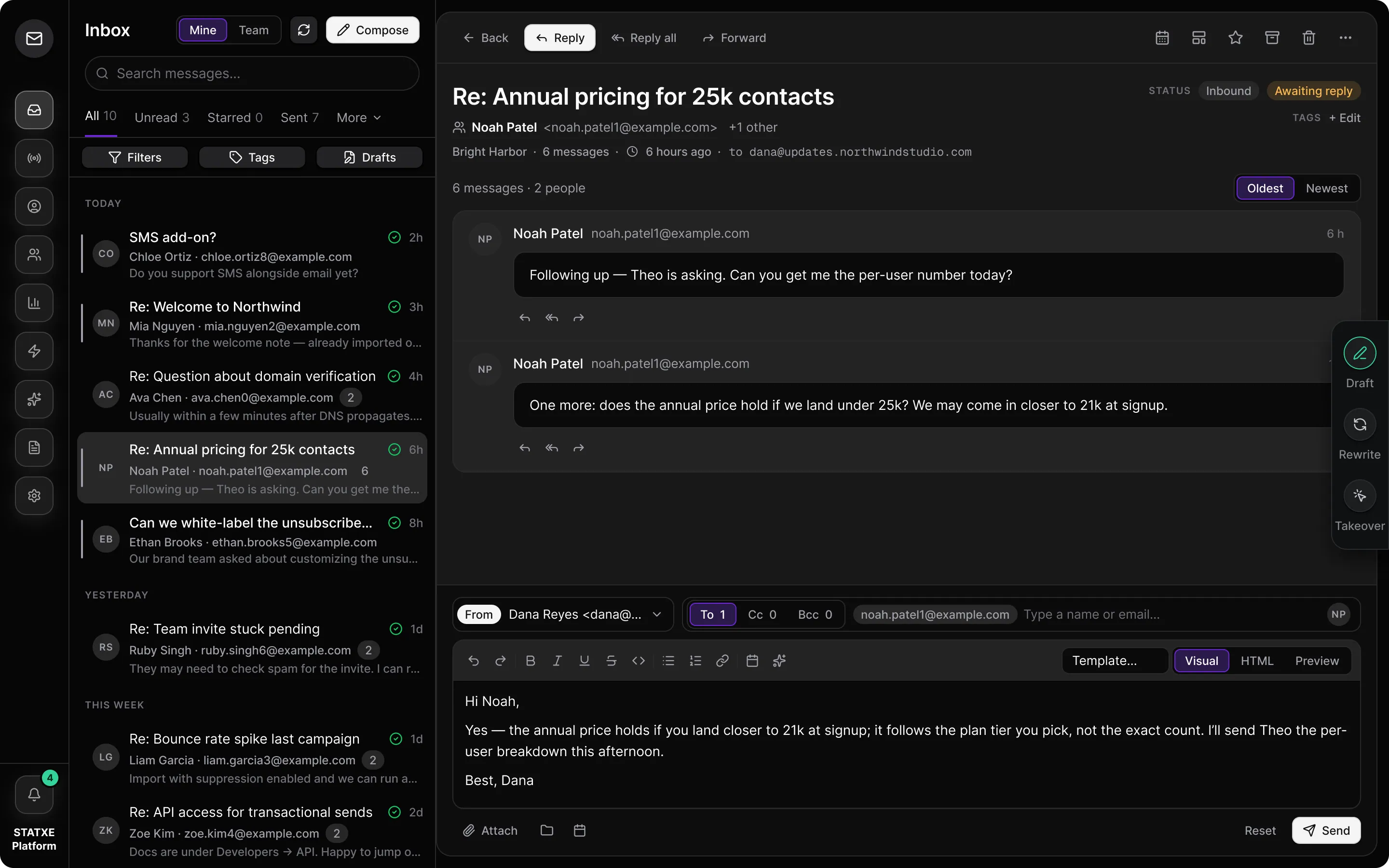
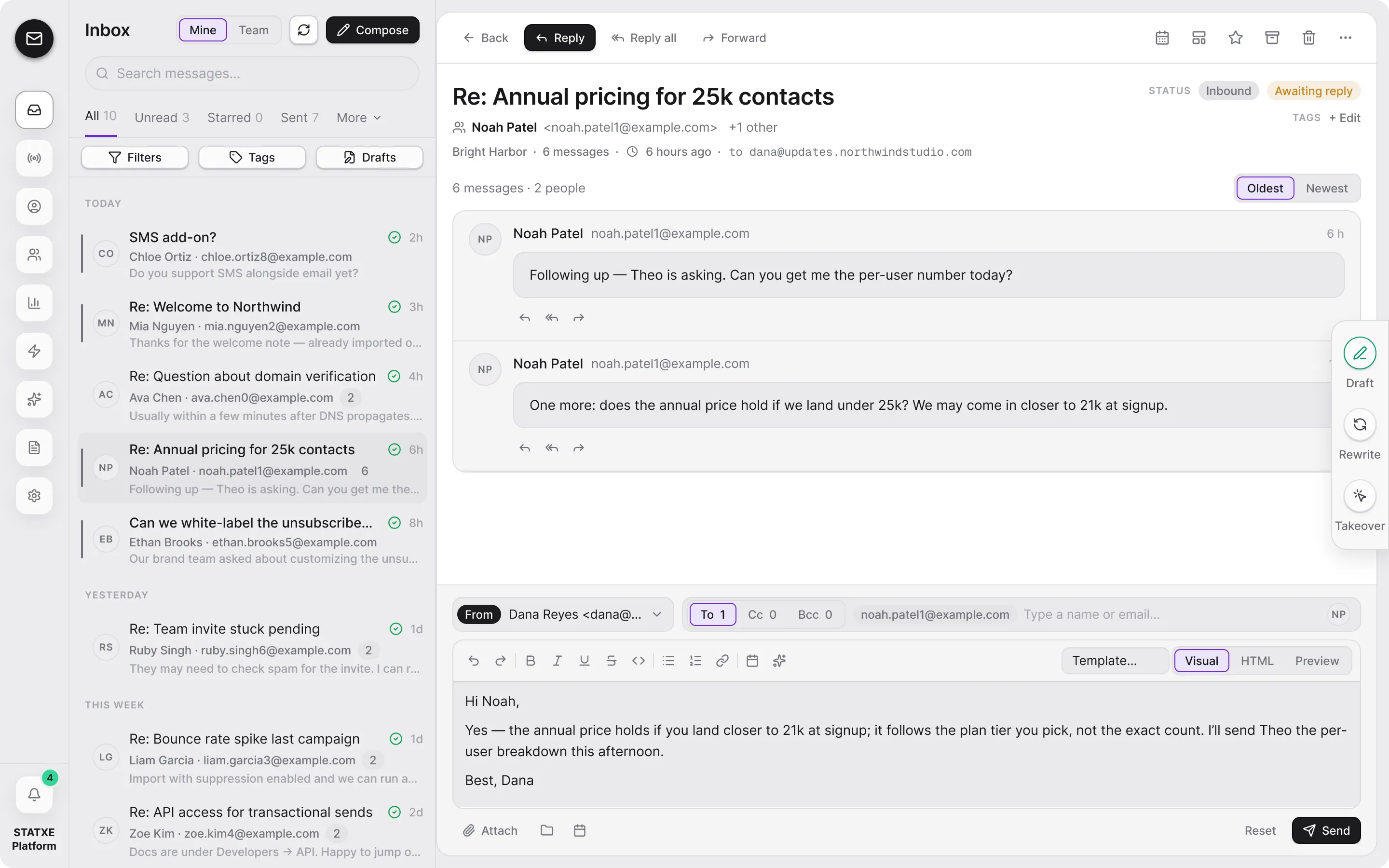
    In the assistant, copy or insert the text into a campaign. In Inbox, use Apply to draft so the suggestion lands in the composer. Then edit names, claims, and links yourself.

  4. You send — not the model

    STATXE does not send AI text without a human gate. Click Send on the campaign or the thread only after you have read the draft. If the grant is empty, buy AI credits on Billing.

Ask for a draft, then you send it

Assistant

AI credits · 2,000
Draft an August update for Launch list. Subject plus two short paragraphs. From hello@updates.statxe.com.

Draft

Subject: Your workspace is ready

Hi — billing is on, the domain is verified, and Launch list is ready. Preview the footer, then send or schedule.

Nothing here is sent. Copy into a campaign, then you click Send.

Walkthrough playing.

Assistant for campaign copy

Ask with an audience and an outcome. The assistant spends AI credits. Copy or insert the text into a campaign, then you click Send.

Inbox Ask AI

On a thread, Ask AI can suggest a reply. Apply to draft puts it in the composer. Edit, then send yourself.

Ask AI · Re: Workspace is ready

Composer

Empty until you apply the suggestion.

Suggested reply

Hi Nia — I will send the August update from this mailbox to Launch list this afternoon.

Apply to draft